



Pro Image Optimizer
AI-Powered Smart Compression • Zero Quality Loss
Image Optimizer at WP Toolkit Hub - Make Your Pictures Smaller Without Losing Quality
So you got a website or a blog and you put pictures on it. But then you notice the pages load real slow. Thats probably because your images are too big. Big image files take forever to load, and people get impatient and leave. Thats where a tool like our Image Optimizer comes in. Its pretty simple what it does – it makes your image files smaller. A lot smaller sometimes. And it tries to do this without making the picture look bad or blurry. You get to keep the quality but lose the huge file size.
This is just one of the tools we have for working with images on our site. We also have an Image Compressor which is great for just making files take up less space, and a PDF Optimizer for your document files. If you need to change a picture into a different format, our Image Converter can do that. But right now, lets talk about optimizing images.
What Our Image Optimization Tool Actually Does For You
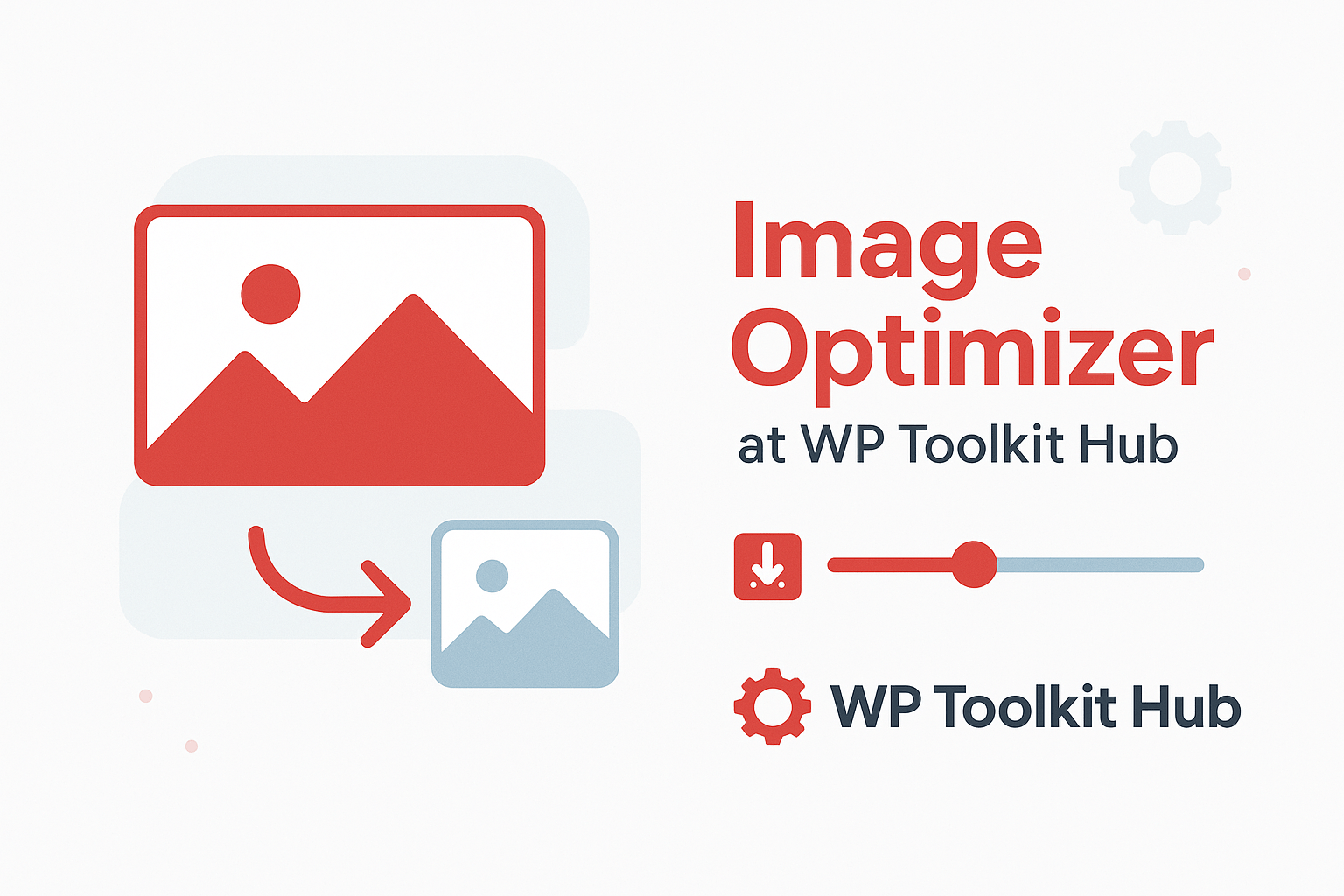
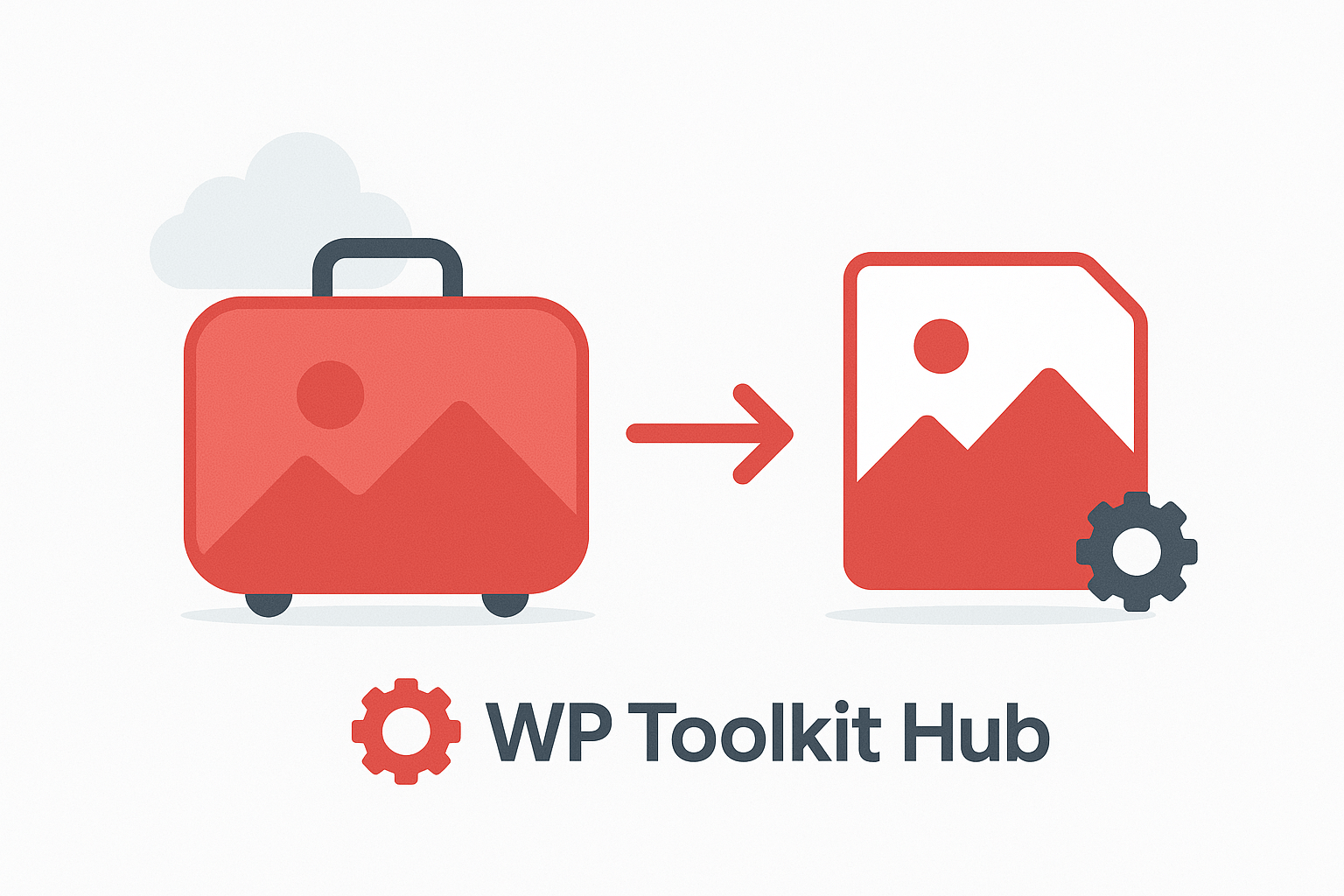
Think of it like this. You have a big suitcase thats over the weight limit for a flight. You need to take some stuff out so you dont get charged extra. Our optimizer is like that, but for your digital pictures. It removes the unnecessary “weight” from the file so it loads faster online, but you still have all your clothes to wear.
Heres the basic idea of how you use it:
- You can upload a bunch of images at once, up to 20.
- Each file can be as big as 40MB, which is pretty huge for a picture.
- The tool gets to work right away, shrinking them down.
- You can optimize them all together in one click, or you can do each one by itself.
- When youre happy, you can download each picture or get them all in one zip folder.
The cool part is you get to choose how much you want to squeeze them. Theres a setting that lets you pick a percentage for optimization. So if you need a super tiny file for a website, you can push it further. If you want it just a bit smaller but still perfect quality, you can do that too. You’re in control.
The Advanced Stuff You Can Tweak
If you know a little bit about images, you might want to play with the advanced options. If you dont, thats fine too – the automatic settings work great. But for those who want more control, heres what you can change:
| Setting | What It Does |
|---|---|
| Compression Quality | The tool usually picks this for you based on the image. But you can change it if you want a different balance of size and quality. |
| Output Format | It will keep your original format by default. But you can also change it to JPEG, PNG, or the newer WEBP format, which is great for the web. |
| Maintain Original Resolution | This is usually on. It means the physical dimensions of the picture (like 1200×800 pixels) stay the same. Youre just making the file size smaller. |
| AI Auto-Analyze | This is also on by default. It means our tool looks at your image and tries to find the best way to shrink it smartly. You can turn it off if you want to do everything manually. |
Why Bother Optimizing Images Anyway?

Your Website Loads Faster
This is the big one. Every second a visitor has to wait for a page to load, you might lose them. Search engines like Google also notice slow sites and might not show them as high in search results. Using an image optimizer is a basic part of seo image optimization.

You Save Storage Space
If you have a website, you're probably paying for hosting space. Big images fill that up fast. On your phone or computer, optimized images mean you can store more photos and videos.

It Makes Sharing Easier
Try emailing a 10MB picture to a friend. It might get bounced back or take forever to send. A optimized version of that same picture might be only 500KB and send in a second.

Better for Social Media and Blogs
Platforms like WordPress work better with optimized images. If you use WordPress, think of our tool as a wordpress image optimizer you can use right in your browser before you even upload them.
Its one of those things that seems small, but it makes a huge difference. And its not just for websites. Anyone who uses digital pictures can benefit. After you optimize your images, you might also need our Text Cleaner tool if you’re copying text from those PDFs to put on your site.
How Our Image Optimizer Stacks Up Against Others
Lots of places online let you shrink images. So why use ours? We think we made a tool that gives you a good balance of power and simplicity. You dont need to be an expert to use it.
| Feature | WP Toolkit Hub Image Optimizer | Some Other Optimizers |
|---|---|---|
| Max File Size | Up to 40MB per image | Often only 5MB or 10MB |
| Batch Processing | Yes, up to 20 images at once | Sometimes only one at a time |
| Format Control | Keep original or convert to JPEG, PNG, WEBP | Might not let you convert formats |
| Custom Compression | You choose the percentage for each image | Often just one setting for all |
| Cost | Completely Free | Sometimes free for low quality, charge for good compression |
We also have other free tools that work well with this one. Like if you need to create a code for a link, our QR Code Generator is right here. Or if you’re running a business, the Invoice Generator can help you bill your clients.
Okay, But How Does It Actually Work? The Simple Version.
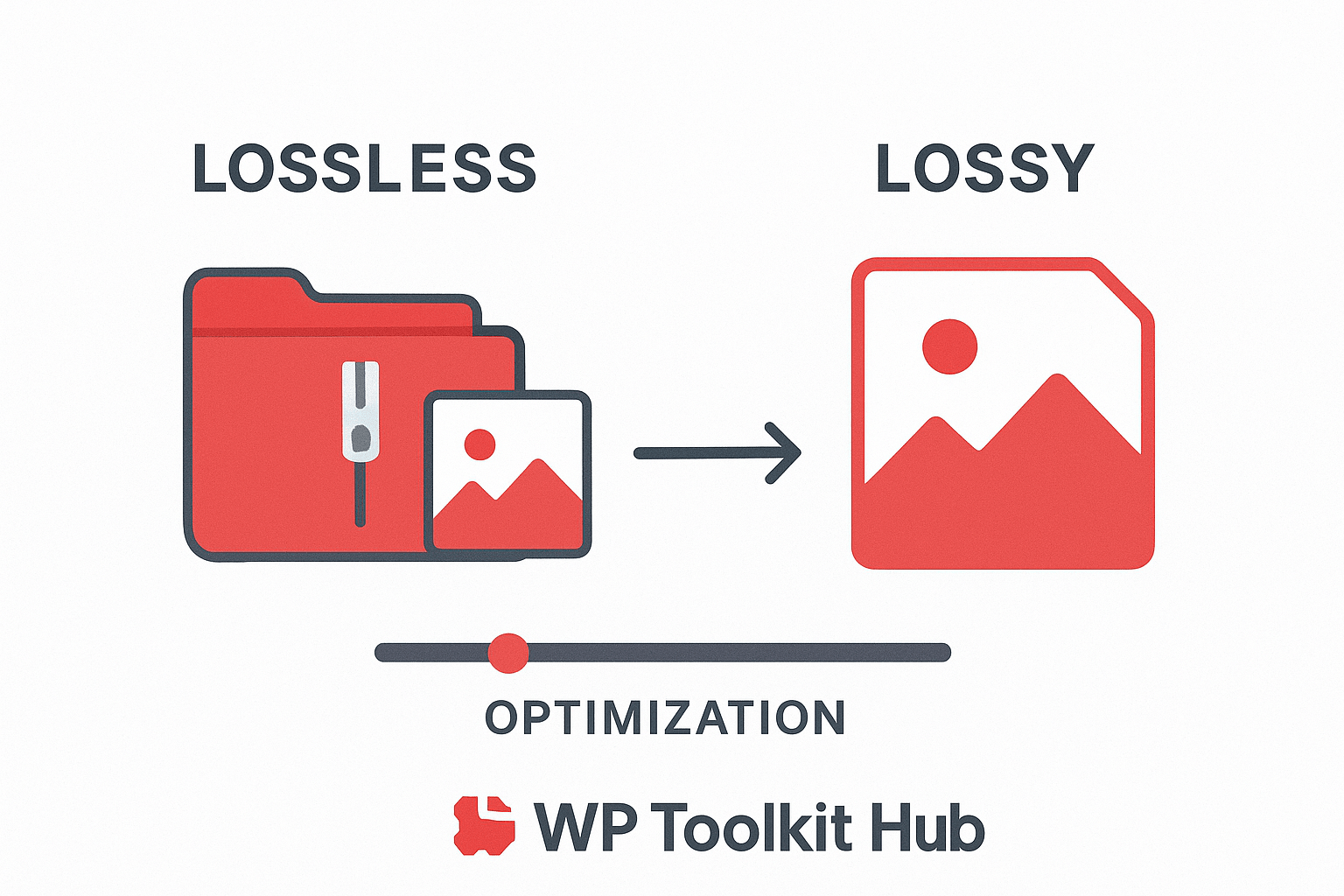
You dont need to know the technical stuff to use it, but if youre curious, heres the basic idea. There’s two main ways to make an image file smaller: Lossless and Lossy.
- Lossless: This is like when you zip a folder on your computer. The file gets smaller, but when you unzip it, every single bit is exactly the same. No quality is lost. This is good, but it doesnt make the file as small as the other method.
- Lossy: This is what our tool uses to get really small files. It basically looks at the picture and says “okay, can a human eye even see this tiny detail?” If the answer is probably not, it removes that information. Its like a slightly lossy version of the original. You control how much information gets thrown away with the quality slider.
Our tool uses a smart lossy compression. It tries to be clever about what it removes so you dont really notice a difference. The goal is to optimize an image for the web so it looks great but loads fast.
And if you’re working with text for your site as well, dont forget we have a Word Counter to help you keep your articles the right length.
Frequently Asked Questions
Is it safe to use? What happens to my images?
Yeah, its safe. We dont keep your pictures. Our system is set up to automatically delete all uploaded files after about an hour. Your original files never leave your computer until you upload them, and they stay exactly the same on your device. We only work on the copies you give us.
What image formats can you optimize?
We handle the most common ones: JPEG, PNG, and GIF. And after optimization, you can keep them as they are or convert them to JPEG, PNG, or WEBP. WEBP is a really good format for websites made by Google.
Will optimizing my images make them look terrible?
It shouldnt if you use it right. The automatic setting does a good job. If you use the slider to make the file super tiny, then yeah, you might see some quality loss. But for most uses, like putting on a website or sharing on social media, the optimized version will look perfectly fine. You can always compare before you download.
Is there a limit to how many times I can use it?
Nope. Its completely free and you can use it as many times as you want. Optimize 20 images, clear the queue, and do another 20. No limits.
I use WordPress. Is this like a wordpress plugin for optimizing images?
Not exactly. Our tool is online here on WP Toolkit Hub. You use it on our site before you upload pictures to your WordPress site. So its a image optimizer wordpress plugin alternative that works right in your browser. You optimize the image here, then upload the smaller version to your WordPress media library. It saves space on your hosting account.
Do you have other tools for websites?
We have a whole bunch. For checking your text, theres the Keyword Density Checker. For dealing with numbers, we have a Discount Calculator. And for security, theres a Password Generator. Lots of stuff to help you out.